
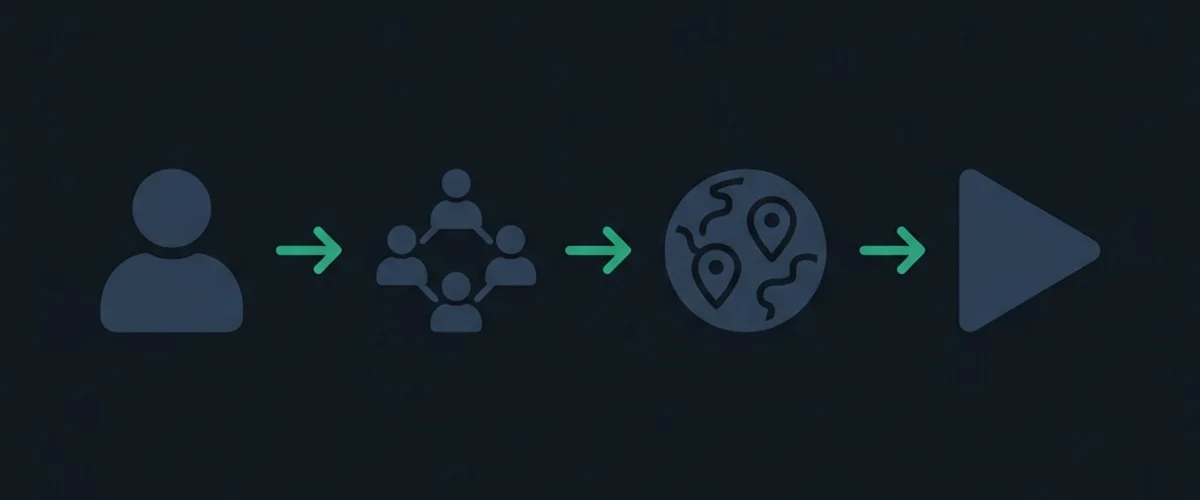
Meccha Chameleon is designed as a social party experience. While playing in public matchmaking is a great way to hone your skills, the real fun lies in hosting private lobbies with friends. Since the game relies on peer-to-peer (P2P) connections, matchmaking requires some understanding of lobby settings, invite systems, and network configurations.
This guide provides a comprehensive walkthrough for setting up lobbies, connecting with friends, matching game versions, and troubleshooting connection failures.
1. Hosting a Lobby: Step-by-Step
Hosting a room makes your PC the server for the match. If you have the strongest internet connection in your group, you should be the host to minimize lag spikes for other players.
[Main Menu] ──> [Multiplayer] ──> [Host Game] ──> [Configure Lobbies] ──> [Launch Lobby]- Select Host Game: From the main menu, navigate to
Multiplayerand clickHost Game. - Lobby Visibility:
- Public: Anyone can see your room in the Server Browser.
- Private: Hidden from the Server Browser. Players can only join via direct Steam invites or room codes.
- Set a Password: We highly recommend setting a password even for private lobbies to prevent random players from joining via Steam’s “Join Friend” shortcut. If you run into password issues, consult our Lobby Password Fix.
- Pick your Region: Match your physical region (e.g., US East, Europe, Asia) to reduce matchmaking packet loss.
2. Inviting Friends
There are two primary methods to invite friends to your lobby.
Method A: Steam Invites (Standard)
- Launch the lobby and load into the pre-game staging room.
- Open your Steam Overlay (Shift + Tab).
- Right-click your friend’s name in your friends list and select Invite to Play.
- Your friend will receive a chat notification. Clicking “Play Game” will launch their client and drop them directly into your room.
- Note: If invites do not arrive or clicking them does nothing, see our detailed Invite Not Working Fix.
Method B: Server Browser Search (Recommended Fallback)
If Steam Overlay fails to load, use direct name lookups:
- Host sets a unique room name (e.g.,
Banana77). - Joiner opens the game, clicks
Multiplayer>Find Server. - Joiner selects the matching region and inputs the host’s room name into the search bar.
- Click Connect and enter the password when prompted.
3. Version Matching and Game Branches
Because Meccha Chameleon is frequently updated, all players in the lobby must run the exact same client version. Even a minor build mismatch will prevent players from joining.
- Check the Build String: Compare the version number displayed at the bottom corner of the main menu screen.
- Update Steam Client: If a player has a different version, they must close the game and restart Steam to force the update queue.
- Beta Branch Sync: If your group is participating in developer playtests (such as testing the upcoming v1.8.1 changes), everyone must opt-in to the same Steam Beta branch. Right-click the game in Steam >
Properties>Betas> select the target branch. - For persistent version issues, refer to the Version Mismatch Troubleshooting Guide.
4. Map Selection & Custom Workshop Content
Lobby hosts can choose between official stages and custom community maps.
- Official Stages: These are the default maps included with the game. We recommend starting on Mansion for groups of 4–6, or Sewer for larger groups of 8–10.
- Workshop Subscriptions: The host can subscribe to maps in the Steam Workshop. When inside the lobby, selecting a Workshop map will prompt the game to sync files with other players. Joiners do not need to download the map beforehand; the game will stream it automatically during loading.
5. Voice Chat Configuration
Meccha Chameleon features proximity-based 3D voice chat. This adds a layer of comedy and strategy, as hiders can whisper to each other but risk being heard by a nearby seeker.
- Proximity vs Discord: Proximity voice is excellent for casual play, but if you have players experiencing high ping or microphone issues, Discord is a more stable alternative.
- Settings Adjustment: In the audio settings, configure your microphone threshold. If your input is too sensitive, ambient background noise might trigger your in-game voice indicator, giving away your hiding location to seekers.
6. Recommended Settings by Group Size
Adjusting lobby configurations keeps matches balanced depending on how many players are in your session.
| Group Size | Roles | Time Limit | Whistle Timer | Map Recommendation |
|---|---|---|---|---|
| 2–3 Players | 1 Seeker / 1–2 Hiders | 3 Minutes | 60 Seconds | Mansion (Official) |
| 4–6 Players | 1 Seeker / 3–5 Hiders | 4 Minutes | 45 Seconds | Penguin Hotel (Official) |
| 7–10 Players | 2 Seekers / 5–8 Hiders | 5 Minutes | 30 Seconds | Sewer (Official) |
7. Troubleshooting Lobby Connection Failures
If you cannot connect to your friends, follow this rapid-fire solution checklist:
- Host Network Isolation: Turn on UPnP in your router settings. P2P lobbies require this to route incoming traffic.
- Firewall Blockage: Ensure Windows Defender has not blocked the game executable. Allow
MecchaChameleon.exethrough both public and private networks. - Steam Account Status: Set your Steam profile status to Online. If you are set to “Invisible” or “Offline”, you cannot host or receive Steam invite alerts.
- Network Doctor: For deep network issues like Double NAT or router port configuration, visit our comprehensive Network NAT Fix Guide.
8. Streamer & Large-Party Hosting
Hosting for 8+ players or a live audience adds constraints beyond a normal friend group. The game still uses P2P hosting, so your upload bandwidth and router stability become the bottleneck.
- Use a wired host: Wi-Fi hosts often cause voice packet loss and desync in large lobbies. Put the host PC on Ethernet before opening the room.
- Discord for big groups: Proximity voice is fun for 4–6 players, but streamer lobbies usually run cleaner on Discord with push-to-talk. See Voice Chat Not Working if you mix both.
- Hide credentials on stream: Enable Streamer Mode in Settings > Gameplay and follow the Streamer Viewer Lobby Setup guide so passwords and invite codes do not appear on OBS.
- Pick scalable modes: For viewer participation, Increasing Oni keeps eliminated players in the hunt instead of long spectator stretches—better for Twitch and YouTube chat engagement.
- Cap workshop map size: Custom stages with heavy props increase load times for joiners. Start official maps for debut streams, then rotate Workshop content once the lobby is stable.
9. Pre-Flight Host Checklist (Copy Before Inviting)
Run through this list once per session before sending Steam invites:
[ ] Game updated to same build as friends (check bottom-left version string)
[ ] Beta branch matches for everyone (Steam > Properties > Betas)
[ ] Host on wired connection; UPnP enabled or ports forwarded
[ ] Unique lobby name + password set (even for "private" rooms)
[ ] Region matches majority of players
[ ] Windows Firewall allows MecchaChameleon.exe
[ ] Voice: push-to-talk bound; Discord fallback ready for 8+ players
[ ] Map picked: official for first match, Workshop only if host pre-subscribed
If a friend still fails after this checklist, send them to the Invite Not Working flowchart first—most join failures are host-side NAT, not client bugs.
Join-Failure Quick Reference
| Error / behavior | Most common fix |
|---|---|
| ”Connecting…” then timeout | Host enables UPnP or forwards UDP 27015–27030 |
| Version mismatch | Everyone restarts Steam; sync beta branch |
| Password rejected | Re-type; avoid special characters—see Lobby Password Fix |
| Workshop map stuck loading | Host must subscribe first; joiners wait for auto-download |
| Can’t find room in browser | Match region tab; search exact lobby name spelling |