
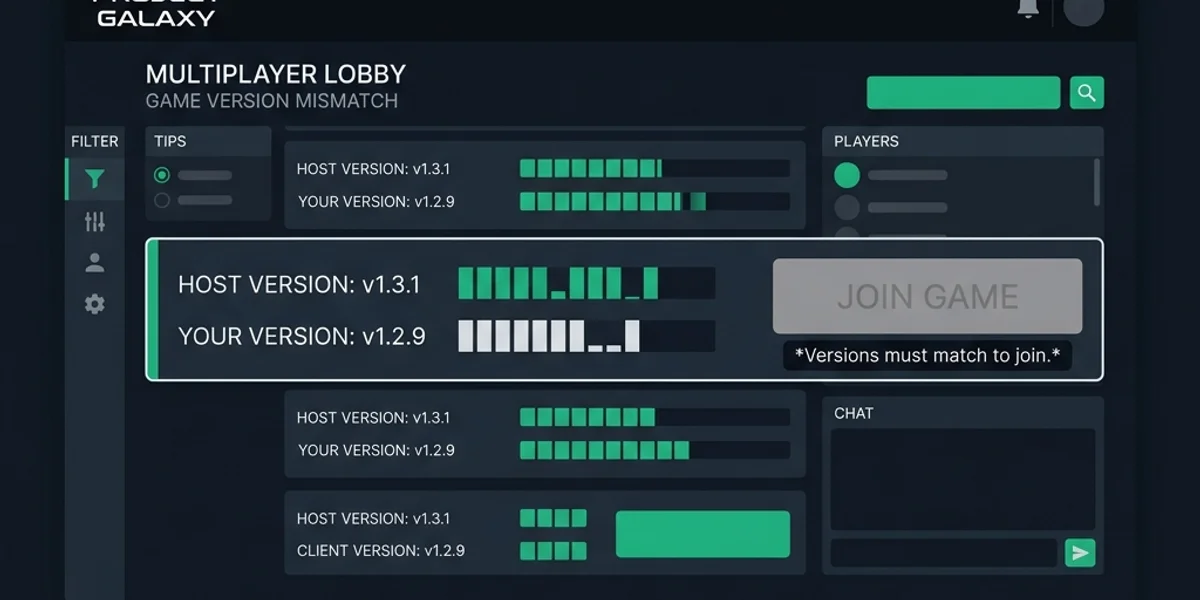
The Version Mismatch error blocks joiners when their client build or Workshop map manifest does not match the host. Align base game versions first, then Workshop subscriptions.
Version Mismatch Troubleshooting Decision Tree
Follow this tree to diagnose mismatch errors:
                  [Lobby Mismatch Error Appears]
                                |
             Compare Main Menu Version Strings (e.g., v1.8.0)
             Do the base version strings match exactly?
             /                               \
          (No)                              (Yes)
           /                                   \
 [Identify Out-of-date Player]        Are you using Workshop Maps?
 [Set Steam Update: High Priority]     /                         \
 [Verify File Integrity]            (No)                        (Yes)
                                    /                              \
                    [Restart Steam Client]              Compare Map Manifests
                    [Clear Download Cache]              Are all players subscribed?
                                                        /                          \
                                                     (No)                         (Yes)
                                                     /                               \
                                          [Subscribe to Mod Map]        [Unsubscribe/Resub Mod]
[Clear Steam Mod Folder]- Branch A: Base Game Version Mismatch: The version strings on the main menu do not match. Jump to Forcing Base Game Updates.
- Branch B: Workshop Map Version Mismatch: The base game matches, but a custom map causes the error. Jump to Resolving Mod and Workshop Mismatches.
Detailed Step-by-Step Fixes
1. Force Steam to Detect Pending Updates (Base Game Fix)
Often, Steam fails to queue updates automatically due to bandwidth saving settings. You must force the download.
- Close Meccha Chameleon.
- Open Steam. Go to your Library, right-click Meccha Chameleon, and select Properties.
- Navigate to the Updates tab.
- Under “Automatic Updates”, change the setting to High Priority - Always auto-update this game before others. This forces Steam to prioritize manifest checks.
- If the download does not start, click on the Downloads tab at the bottom of the Steam client and click Resume if paused.
- Verify Game Integrity: In the Properties menu, go to Installed Files and click Verify integrity of game files. This cross-references your local files with the official Steam manifest, correcting missing or corrupted assets.
2. Clear Steam Download Cache (CDN Propagation Fix)
If Steam still claims the game is up to date but your version is older than the host’s, you must clear the client’s update cache.
- In the Steam client, click Steam in the top-left menu, then select Settings.
- Navigate to the Downloads tab.
- Scroll down to find the Clear Download Cache button and click it.
- Steam will prompt you to restart and log back in.
- Upon logging in, Steam will refresh its local content database and immediately begin downloading the latest patch.
3. Align Steam Workshop Mod Manifests
If the version mismatch only occurs when loading custom maps, a player has an outdated version of a Workshop map .pak file.
- Unsubscribe and Resubscribe: If playing on a map like
Minecraft Lobby, go to the map’s Steam Workshop page. Click Unsubscribe, wait 10 seconds, then click Subscribe again. This forces Steam to download the newest map build. - Clear Corrupt Workshop Files: If the download gets stuck, exit Steam, navigate to:
C:\Program Files (x86)\Steam\steamapps\workshop\content\4704690\Delete the subfolders inside. These contain cached map data. Relaunch Steam to trigger clean redownloads. Refer to our Workshop Download Stuck Guide for advanced steps.
Platform-Specific Solutions
Steam Deck
- Proton Version Cache: If you switch Proton versions on the Deck, it may keep a separate version cache. Right-click the game > Properties > Developer > Clear Selected Proton Files. This clears the virtual prefix cache without deleting your save files, allowing the game to recheck the active patch version. See our Steam Deck Guide for details.
Mac (CrossOver / Wine)
- CrossOver bottles can isolate the Steam client from updating games correctly if file-write permissions are restricted.
- Fix: In CrossOver, run a “Bottle Reboot” or select Clear Bottle Cache to force the underlying Steam client wrapper to sync with Steam’s update API. Refer to the Mac CrossOver Guide for compatibility steps.
Advanced Network Routing (Fallback Scenario)
If you have verified game files, cleared your download cache, and verified all Workshop maps, but Steam still refuses to download the update, you may be experiencing regional CDN delay.
Steam distributes updates through regional content servers. If your local ISP’s regional Steam node has not mirrored the latest developer upload, you will remain stuck on the old build while friends in other regions play on the new one. In this scenario, running a network routing tool or VPN to change your connection location to a major hub (such as Germany or the US West Coast) will connect you to a fully propagated Steam download server, letting you download the patch immediately.