
Fixing Stuck on Connecting in Meccha Chameleon
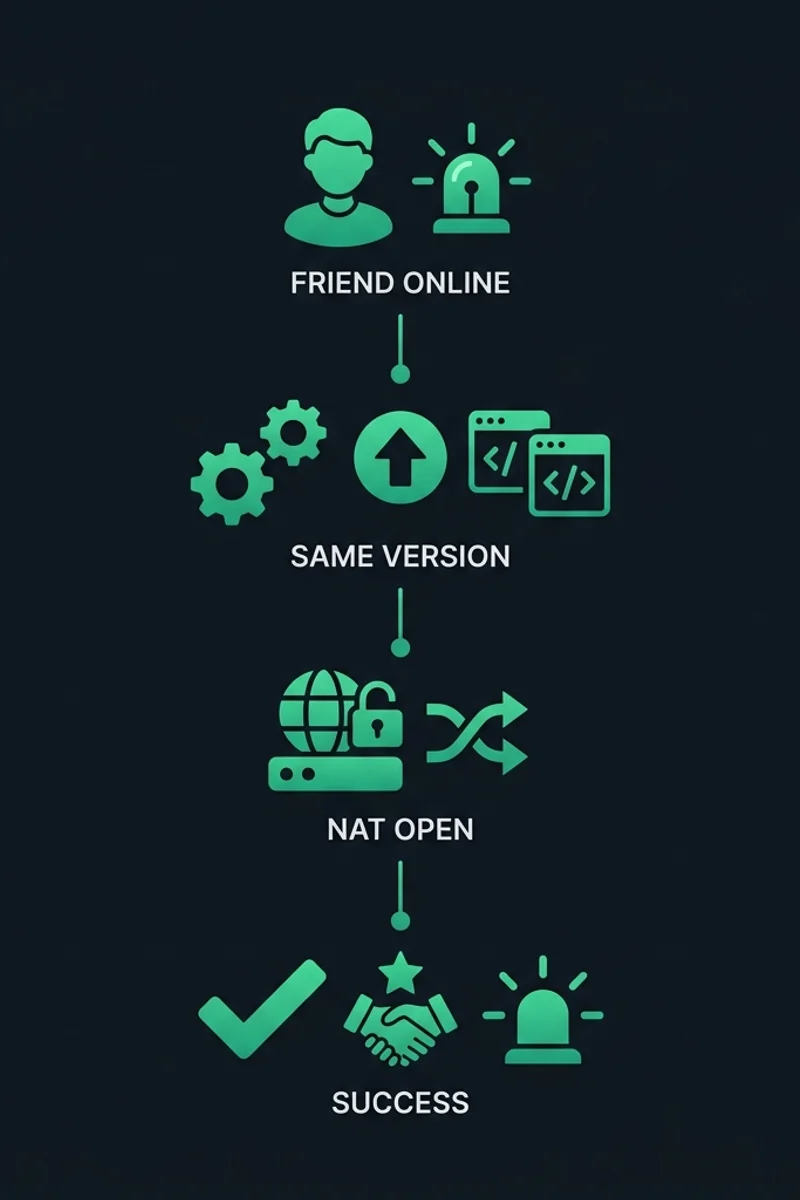
When Meccha Chameleon hangs on the “Connecting…” screen, the game’s networking layer cannot establish a peer-to-peer connection with the host. This is the most common multiplayer issue and is almost always caused by network configuration problems — specifically NAT type, firewall rules, or port forwarding.
Stuck on Connecting Troubleshooting Decision Tree
          [Stuck on Connecting Screen]
                    |
        Are other players affected too?
           /                \
         (No)              (Yes)
          /                   \
Your network issue         Host's network issue
          |                    |
Check NAT type           Ask host to check
& firewall port forwarding- Branch A: Only you are stuck → Your NAT/firewall is blocking. Jump to Your Network Fixes.
- Branch B: Everyone is stuck → Host’s network is misconfigured.
Detailed Step-by-Step Fixes
1. Check Your NAT Type
Strict NAT prevents incoming connections from other players.
- Open the game’s Network Settings (if available) or check via Windows:
- Press Win + R, type
cmd, press Enter. - Type
netsh interface ip show neighborsand check your gateway. - Navigate to your router admin page (usually
192.168.1.1). - Find the UPnP or NAT section.
- Enable UPnP — this automatically opens the required ports.
- If UPnP is not available, set up port forwarding for UDP ports
7777-7778and27015-27030to your PC’s local IP.
2. Enable UPnP on Your Router
UPnP is the fastest fix for most players.
- Log in to your router (typically
192.168.1.1or192.168.0.1). - Navigate to Advanced → NAT → UPnP.
- Toggle UPnP On.
- Save and restart the router.
- Restart the game and try connecting again.
See the full UPnP Setup Guide for brand-specific instructions.
3. Add Firewall Exception
Windows Firewall may be blocking the game’s UDP traffic.
- Press Win + R, type
firewall.cpl, press Enter. - Click Allow an app or feature through Windows Defender Firewall.
- Click Change settings → Allow another app.
- Browse to
MecchaChameleon/Binaries/Win64/MecchaChameleon-Win64-Shipping.exe. - Check both Private and Public → click OK.
4. Flush DNS and Reset Network Stack
Corrupted network stack entries can cause connection hangs.
- Open Command Prompt as Administrator.
- Run these commands in order:
ipconfig /flushdns netsh winsock reset netsh int ip reset ipconfig /release ipconfig /renew - Restart your PC and try connecting again.
Platform-Specific Solutions
Steam Deck
Steam Deck uses Proton’s networking layer. If stuck on connecting, go to Game Mode → Settings → Developer → Disable Compatibility Proton and relaunch. If that does not work, switch to Proton Experimental in the game’s compatibility settings.
Mac (CrossOver / Wine)
CrossOver’s network translation can cause connection hangs. In CrossOver bottle settings, set the Network mode to Bridged (if available) or ensure Wine Mono is installed for proper socket handling.
Advanced Troubleshooting
If you can connect to some lobbies but not others, your NAT type may be Moderate instead of Open. See NAT Type Fix for a full NAT diagnostic. For invite-specific failures, see Invite Not Working. For DNS-related connection issues, see DNS Flush Reset.