
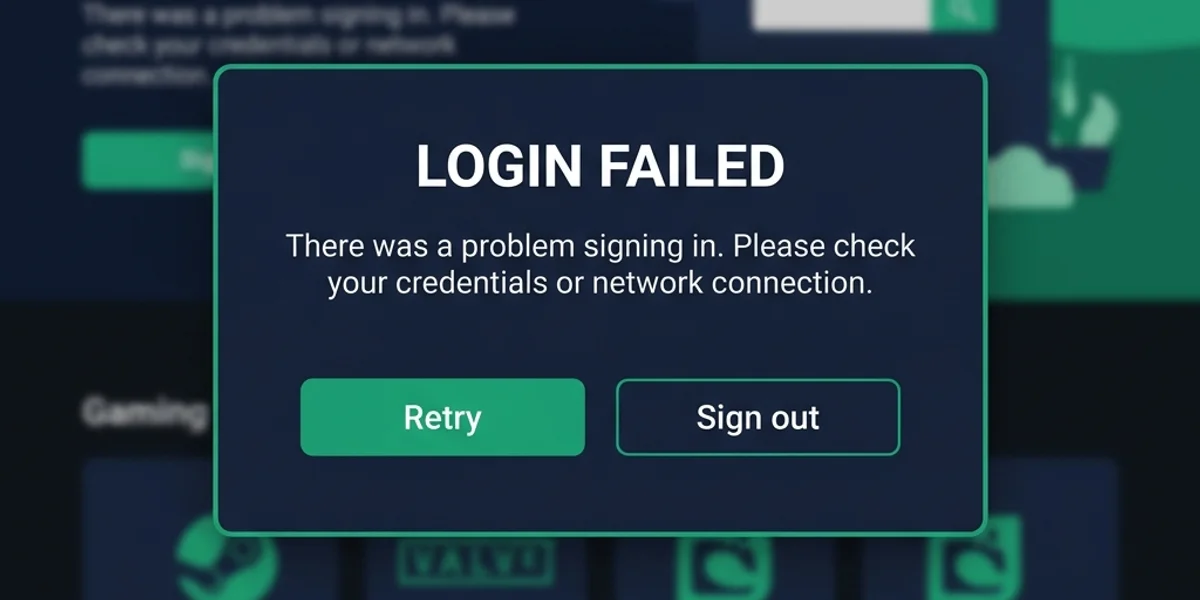
Fixing EOS Login Failed Errors in Meccha Chameleon
Meccha Chameleon uses Epic Online Services (EOS) as its backend layer for multiplayer session management, matchmaking, and authentication. When you see an “EOS Login Failed” or “Authentication Timeout” error, it means the game client could not verify your Steam session with Epic’s servers. This blocks all multiplayer functionality, including private lobbies.
Technical Architecture: How Steam and EOS Communicate
To troubleshoot this error, it helps to understand the underlying authentication pipeline:
- Steam Ticket Request: On startup, the game client asks Steam for an encrypted App Ownership Ticket.
- EOS Handshake: The game passes this Steam ticket to the Epic Online Services SDK helper.
- Token Exchange: Epic’s servers verify the Steam ticket’s validity and return a temporary EOS session token.
- Matchmaking Initialization: The game joins the peer-to-peer lobby system using this token.
If any network congestion, certificate expiration, or cached file corruption occurs in steps 2 or 3, the cycle stalls, prompting the “EOS Login Failed” error.
EOS Login Troubleshooting Decision Tree
Follow this tree to diagnose your authentication failures:
               [EOS Login Failed Error]
                         |
               Check Internet Stability
          Can you browse the web normally?
          /                         \
       (Yes)                        (No)
        /                             \
Check EOS Cache Files         [Fix Router/DNS Issues]
Is the EOS cache corrupted?   [Restart Modem]
/                      \      [Flush DNS Cache]
(Yes)                   (No)
 /                       \
[Delete EOS Cache]   Check Steam Status
[Restart Game]       Is Steam online?
                     /              \
                  (Yes)             (No)
                   /                  \
           [Verify Steam Files]   [Wait for Steam Outage]
[Run as Administrator] [Check Status Page]- Branch A: Corrupted EOS Cache: The game fails immediately on login with no network issues. Jump to EOS Cache Cleanup.
- Branch B: Network Configuration Failure: Other online services work, but EOS cannot connect. Jump to Network and DNS Fixes.
- Branch C: Steam Overlay Conflict: The Steam overlay interferes with EOS session creation. Jump to Overlay and Permissions Fixes.
Pre-Flight Verification Matrix
Before running command-line repairs, verify these configurations:
| Parameter | Recommended Setting | Verification Method |
|---|---|---|
| System Clock | Automatic (NTP Sync) | Check Windows Taskbar Time vs Time.is |
| Steam Status | Online (Green) | Check Steam Friends List |
| Windows Update | Up to Date | Settings > Update & Security > Check for Updates |
| Antivirus Mode | Whitelisted / Game Mode | Check Antivirus Quarantine Logs |
Detailed Step-by-Step Fixes
1. Clear the EOS Cache Directory (EOS Cache Cleanup)
EOS stores cached authentication tokens and session manifests in a local directory. If these files become corrupted, the game will fail to generate a valid login ticket every time it starts.
- Exit Meccha Chameleon and the Steam client completely.
- Press
Windows Key + Rto open the Run window. - Type the following path and press
Enter:%LOCALAPPDATA%\EpicOnlineServices\ - Delete all files and folders inside the
EpicOnlineServicesdirectory. - Navigate to the game’s local save directory:
%LOCALAPPDATA%\Chameleon\Saved\ - Locate and delete the EOSSDK folder if it exists.
- Restart Steam and launch the game. EOS will regenerate fresh authentication tokens on the next login attempt.
2. Flush DNS and Reset Network Sockets (Network Fix)
If your DNS cache contains stale entries pointing to outdated EOS server addresses, the authentication handshake will fail before it begins.
- Press the
Windows Key, typecmd, right-click Command Prompt, and select Run as Administrator. - Enter the following commands one at a time, pressing
Enterafter each:ipconfig /flushdns netsh winsock reset netsh int ip reset - Restart your computer to apply the network adapter changes.
- Launch Steam and try the game again. This clears all stale DNS and socket entries that may be blocking the EOS connection. For a deeper reset, consult the DNS Flush Guide.
3. Disable Steam Overlay for the Game (Overlay Conflict Fix)
The Steam overlay injects a rendering hook into the game process. In some configurations, this hook conflicts with the EOS SDK’s session token validation, causing a login timeout.
- Open your Steam Library.
- Right-click Meccha Chameleon and select Properties.
- Under the General tab, uncheck Enable the Steam Overlay while in-game.
- Also under General, in the Launch Options field, add:
-NoEOSOverlay - Launch the game. If the login succeeds, the Steam overlay was blocking the EOS authentication layer. You can re-enable the overlay after a successful login to confirm. Review the complete list of arguments in the Launch Options Guide.
Platform-Specific Solutions
Steam Deck
- Sleep Mode Socket Failure: When the Deck wakes from sleep, the Wi-Fi adapter can lose its socket binding to the EOS authentication servers, causing the login to fail on resume.
- Fix: Fully close the game before putting the Deck to sleep. On wake, toggle the Wi-Fi card off and on in the system settings, then relaunch the game. Refer to the Steam Deck Guide for additional Deck-specific optimizations.
Mac (CrossOver / Wine)
- Wine Network Translation Issues: Wine’s Winsock translation layer can corrupt UDP packets required for EOS authentication.
- Fix: In your CrossOver bottle settings, ensure Network is set to Bridged Networking mode. Avoid using Wi-Fi; a USB-C Ethernet adapter provides the most stable connection. Refer to the Mac CrossOver Guide for full setup details.
Advanced Network Routing (Fallback Scenario)
If you have cleared the EOS cache, flushed DNS, disabled the overlay, and verified your network connection, yet the EOS login still fails, the issue is likely caused by regional EOS server throttling.
Epic Online Services occasionally rate-limits authentication requests in specific geographic regions during peak hours. In this scenario, using a gaming VPN or network optimizer to route your traffic through a different region (such as switching from a congested Asian server to a US or European gateway) will bypass the regional throttle and allow the EOS login handshake to complete successfully.
After resolving the login error, check the Stuck on Connecting Fix if you encounter additional multiplayer session issues, or the Invite Not Working Fix if friends still cannot join your room.