
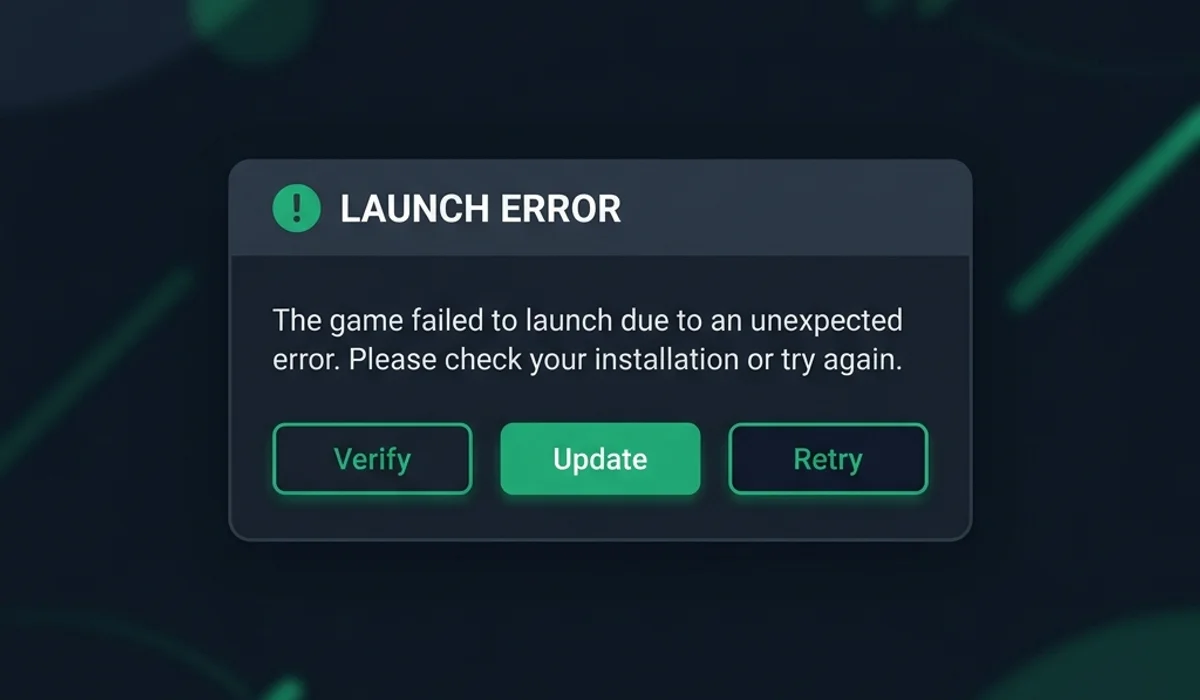
Fixing Meccha Chameleon Crash on Launch Errors
Meccha Chameleon is built on Unreal Engine 5 (UE5), which utilizes advanced rendering pipelines like Nanite and Lumen. While this provides gorgeous visuals, it also places heavy demands on graphics hardware and system drivers. If the game crashes immediately upon clicking “Play” in Steam, loops on prerequisites installers, or throws DirectX runtime errors, follow this comprehensive troubleshooting guide to restore stability.
Crash on Launch Troubleshooting Decision Tree
Follow this tree to diagnose your startup crashes:
                  [Game Crashes Instantly on Launch]
                                  |
                      Check the Error Message Type
             Does the crash show a DirectX/DXGI error?
             /                               \
          (Yes)                              (No)
           /                                   \
 [Apply -dx11 Launch Option]          Does it loop on prerequisites?
 [Update Display Drivers]             /                            \
                                   (Yes)                          (No)
                                    /                              \
                    [Reinstall Visual C++ Redist]      Clear Cache & Verify Files
                    [Run Shipping.exe Directly]        /                         \
                                                    [Success?]                [Failed]
                                                    /                               \
                                           [Enjoy Match!]            [Disable Overlays/Antivirus]
[Review Hardware Limits]- Branch A: DirectX or DXGI Error Displayed: The crash is rendering-related. Jump to DirectX API Configuration.
- Branch B: Prerequisite Setup Loop: Steam repeats installing C++ or DirectX packages. Jump to Visual C++ Runtime Repair.
- Branch C: Silent Crash (No Error Box): The game starts, displays a black screen, and closes. Jump to Shader Cache and Overlay Conflicts.
Detailed Step-by-Step Fixes
1. Force DirectX 11 Mode (DirectX API Configuration)
By default, Unreal Engine 5 attempts to boot using DirectX 12. If your graphics card does not fully support feature level 12_0, or if your driver has compatibility bugs, the game will crash instantly.
- Open the Steam client. Go to your Library.
- Right-click Meccha Chameleon and select Properties.
- Under the General tab, locate the Launch Options text box.
- Paste the following command line arguments:
-dx11 -windowed -ResX=1280 -ResY=720 - Launch the game. The
-dx11flag bypasses DX12 rendering, while-windowedprevents display mode initialization conflicts. For more details on command arguments, read the Launch Options Guide.
2. Clear Corrupted Shader Cache Directories (Cache Fix)
Corrupted shader files can trigger assertion failures inside the graphics driver during boot.
- Press
Windows Key + Rto open the Run window. - Type
%LOCALAPPDATA%\Chameleon\Saved(or%LOCALAPPDATA%\MecchaChameleon\Saved) and pressEnter. - Locate the directory named ShaderCache.
- Delete this directory.
- Verify files: Right-click Meccha Chameleon in Steam > Properties > Installed Files > Verify integrity of game files. For details, review the Shader Cache Cleanup Guide.
3. Repair Visual C++ Runtime Packages (Prerequisite Loop Fix)
If the game installer loops on startup prerequisites, your local C++ redistributable packages are corrupt.
- Press
Windows Key + R, typeappwiz.cpland click OK. - Scroll down to find Microsoft Visual C++ 2015-2022 Redistributable (x64).
- Right-click it and choose Change, then click Repair.
- If the installer is missing, download the official package directly from Microsoft’s official support page and install it.
- Bypass Launcher: If Steam still loops, go to the game files directory (
SteamApps/common/MecchaChameleon/Binaries/Win64/) and double-clickMecchaChameleon-Win64-Shipping.exeto run the game directly.
Platform-Specific Solutions
Steam Deck
- Proton Translation Fix: If the game crashes on Deck, navigate to game Properties > Compatibility. Select Force the use of a specific Steam Play compatibility tool and choose Proton GE (GloriousEggroll) or Proton Experimental.
- VRAM Allocation: In the Steam Deck BIOS, increase the UMA Frame Buffer Size from 1GB to 4GB to prevent Out of Memory (OOM) crashes on larger Workshop maps. Refer to the Steam Deck Guide for details.
Mac (CrossOver / Wine)
- Unreal Engine 5 requires advanced Apple Metal translation. Direct3D 12 (DX12) is extremely unstable on CrossOver.
- Fix: Ensure D3DMetal is toggled ON in your bottle settings. Do not use DXVK for this title. Ensure you launch the game with
-dx11inside the launch properties. Refer to the Mac CrossOver Guide for compatibility.
Advanced Network Routing (Fallback Scenario)
If you have applied DirectX 11 launch arguments, reinstalled C++ packages, cleared your shader cache, and updated your graphics drivers, yet the game still crashes silently on launch, your local installation may be missing vital metadata files due to regional CDN packet corruption.
During Steam updates, minor asset corruption can bypass the standard file validation checks if local ISP DNS caching is out of sync. In this specific scenario, connecting to a VPN and switching your server location to a major gateway will allow you to run the Steam file validation process against a different, uncorrupted content distribution hub. This forces the download of correct, clean assets, resolving the launch crash.