
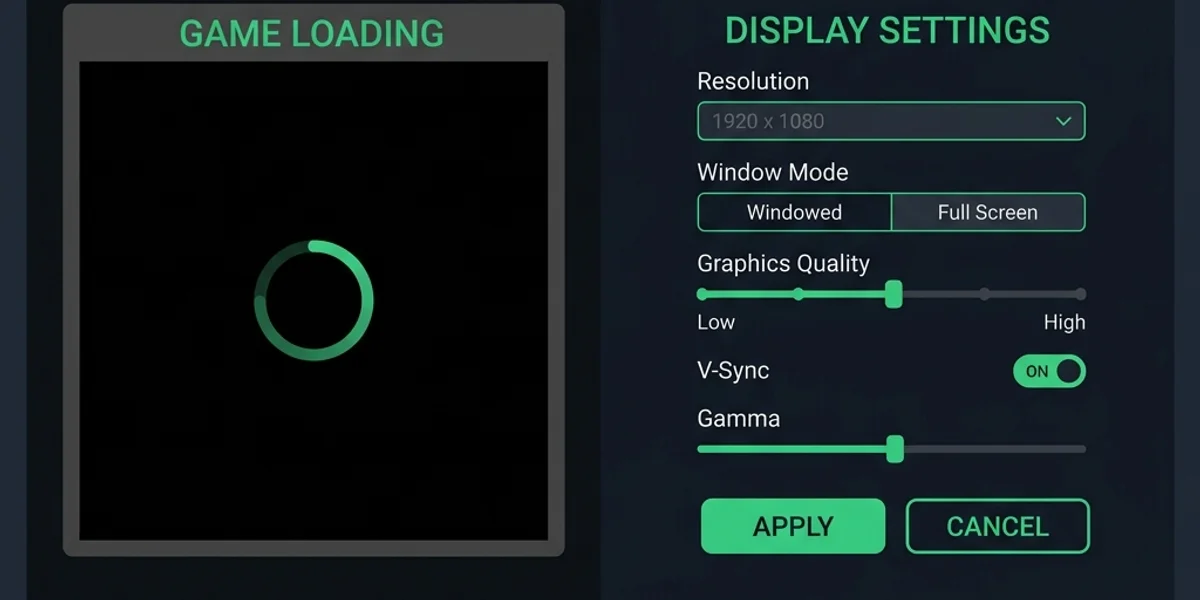
A black screen during loading means Unreal Engine 5 failed to draw frames — often with audio still playing. The fixes below target display mode, shader cache, and API compatibility.
Loading Hang Troubleshooting Decision Tree
Follow this tree to diagnose your black screen issues:
                  [Screen Turns Black During Loading]
                                  |
                      Check for Background Audio
             Can you hear the menu/lobby music?
             /                               \
          (Yes)                              (No)
           /                                   \
 Verify Display Mode Settings         Check Graphic API Compatibility
 Are you in Fullscreen mode?          Are you running DirectX 12?
         /                      \     /                         \
      (Yes)                    (No) (Yes)                      (No)
       /                          \   /                           \
 [Force Windowed Launch]       Wait 3 Minutes for Shader Comp    Clear Shader Cache
[Disable Fullscreen Opt] [Verify SSD Installation] [Verify Game Files]- Branch A: Audio is Playing: The game engine is running, but the display wrapper cannot draw the frames. Jump to Display Mode and Windowed Fixes.
- Branch B: Total Freeze (No Audio): The engine thread is blocked, likely compiling shaders or waiting for assets. Jump to Shader Compilation and API Settings.
- Branch C: Custom Map Specific Hangs: The black screen only occurs when loading Workshop maps. Jump to Workshop Asset Loading.
Detailed Step-by-Step Fixes
1. Force Windowed Mode via Steam Launch Options (Display Fix)
Unreal Engine 5 sometimes fails to initialize a custom resolution in exclusive fullscreen mode, causing the display driver to drop the window frame.
- Open the Steam client. Navigate to your Library.
- Right-click Meccha Chameleon and select Properties.
- Under the General tab, find the Launch Options text box.
- Paste the following parameters:
-dx11 -windowed -ResX=1280 -ResY=720 - Launch the game. Once loaded into the main menu, you can toggle the display back to Borderless Windowed in the options menu. Refer to our Launch Options Guide for a complete list of arguments.
2. Disable Windows Fullscreen Optimizations
Windows attempts to enhance fullscreen performance using dynamic frame presentation. This can conflict with UE5 swap chains, resulting in a black screen.
- Open your Steam Library. Right-click Meccha Chameleon > Properties > Installed Files > Browse.
- Navigate to
Binaries/Win64/. - Right-click
MecchaChameleon-Win64-Shipping.exeand select Properties. - Navigate to the Compatibility tab.
- Check the box that says Disable fullscreen optimizations.
- Click Apply and then OK.
3. Clear Corrupted Shader Cache Files
If a driver update occurred recently, your compiled shader cache will conflict with the active driver version, causing the compiler to hang.
- Exit the game and Steam.
- Press
Windows Key + Rto open the Run window. - Type
%LOCALAPPDATA%\Chameleon\Saved(or%LOCALAPPDATA%\MecchaChameleon\Saved) and click OK. - Locate the directory named ShaderCache. Delete it.
- Clear derived data: Locate the
DerivedDataCachefolder if present, and delete it as well. - Launch the game. The first boot will take slightly longer to recompile shaders. Refer to the Shader Cache Cleanup Guide for details.
4. Relocate the Game to an SSD (Map Asset Loading Fix)
Loading large Workshop maps from an older HDD can cause the game client to exceed the network connection timeout limit, dropping you to a black screen while the map tries to load in the background.
- Move your game installation to an SSD. SSDs provide the necessary read speeds for UE5 map chunks. Go to Steam > Right-click game > Properties > Installed Files > Move install folder to select your SSD. If you have performance concerns, refer to the Low-end PC Settings Guide.
Platform-Specific Solutions
Steam Deck
- Proton Translation Hangs: If the Deck displays a black screen on startup, switch the translation layer. Right-click the game > Properties > Compatibility. Select Force the use of specific compatibility tool and choose Proton Experimental.
- See our Steam Deck Guide for details.
Mac (CrossOver / Wine)
- Metal translation layers struggle with DX12 graphics hooks, which triggers a permanent black screen during window initialization.
- Fix: Ensure D3DMetal is enabled in the bottle configurations, and use
-dx11in the launch properties. Whitelist the bottle directory in macOS system preferences. Refer to the Mac CrossOver Guide for compatibility details.
Advanced Network Routing (Fallback Scenario)
If you have forced windowed mode, disabled fullscreen optimizations, cleared your shader cache, and verified your SSD write speeds, yet you still hit a black screen when loading into online lobbies, you may be experiencing MTU (Maximum Transmission Unit) packet drop.
When loading into a map, the host transmits massive layout packets. If your ISP router has a low MTU threshold, these large packets will fragment and get dropped, leaving your client stuck on a black screen waiting for map data. In this scenario, running a network optimizer or VPN can adjust and clamp your network MTU to a stable size (typically 1400 bytes), allowing these map data blocks to transfer without fragmentation.