
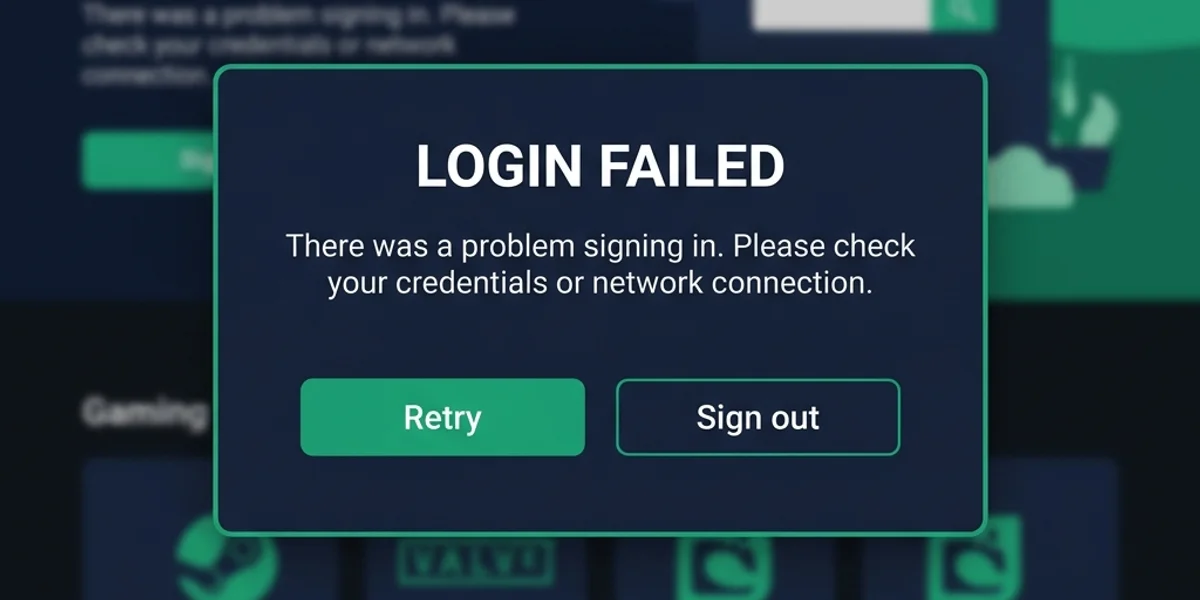
Fixing Epic Online Services Authentication Token Errors
The “Authentication Token Error” (often appearing on the main menu as “Failed to validate EOS token” or “Authentication failed”) indicates a breakdown in communication between the Steam client, Epic Online Services (EOS) backend, and your local computer. Because Meccha Chameleon relies on EOS to catalog lobbies and connect players, multiplayer is inaccessible until this token is successfully validated.
Authentication Troubleshooting Decision Tree
Follow this symptom-based workflow to resolve the issue:
            [Launch Game -> See Auth Token Error]
                              |
                     Check PC System Time
             Is your clock synchronized to NTP?
             /                               \
          (No)                              (Yes)
           /                                   \
 [Set Time to Automatic]               Check VPN / Proxy Setup
 [Sync with time.windows.com]          Are you running active VPN/Proxy?
                                       /                             \
                                    (Yes)                            (No)
                                     /                                  \
                            [Disable VPN/Proxy]             Run Command Prompt (Admin)
                            [Flush DNS & Winsock]           /                        \
                                                 [Success?]               [Failed]
                                                 /                               \
                                        [Enjoy Match!]               Reinstall EOS Services
Clear Local AppData Files- Branch A: Incorrect System Clock: If your clock is even slightly desynchronized, authentication will fail immediately. Jump to Clock Synchronization.
- Branch B: VPN / Proxy Routing Interference: Security mechanisms flag sudden IP shifts or datacenter IPs. Jump to VPN and Proxy Settings.
- Branch C: Corrupted Network Stack: Local network routing tables or DNS caches can cache expired token endpoints. Jump to Network Stack Reset.
- Branch D: Broken Service Binaries: If the background EOS redistributable service failed to launch or install, manual repair is needed. Jump to Reinstalling EOS Prerequisites.
Step-by-Step Solutions
1. Synchronize System Clock (Time Validation Fix)
NTP clock mismatches are the primary trigger for this error. Cryptographic tokens verify that the client request timestamp matches the server timestamp.
- Press the
Windows Key + Ito open the Settings menu. - Navigate to Time & Language > Date & Time.
- Ensure that Set time automatically and Set time zone automatically are both toggled ON.
- Under the “Additional settings” section, click the Sync now button.
- If you receive an error, change the Time Server from
time.windows.comtotime.nist.govin the Control Panel settings, then sync again.
2. Flush DNS and Reset Network Stack (DNS Fix)
Stale DNS lookup caches can direct the game client to outdated EOS endpoint IPs, causing validation timeouts.
- Type
cmdin the Windows Search Bar. - Right-click Command Prompt and select Run as Administrator.
- Enter the following commands sequentially, pressing
Enterafter each line:ipconfig /flushdns netsh winsock reset netsh int ip reset netsh winhttp reset proxy - Restart your computer to apply the network stack resets. Consult the DNS Flush Guide for more details.
3. Clear Local Epic Services Cache Files
Sometimes, the game caches an expired session token inside local storage directories. Clearing these files forces a fresh login handshake.
- Close Meccha Chameleon and exit Steam completely.
- Press
Windows Key + Rto open the Run dialog. - Type
%LOCALAPPDATA%and click OK. - Locate the folder named
MecchaChameleon(orEpicOnlineServicesif present). - Navigate to
Saved > Configand delete theEOSfolder. - Relaunch Steam and the game to regenerate the token config files. If you hit file sync conflicts later, read our Cloud Save Error Fix to recover your save data.
4. Manually Repair/Reinstall EOS Service Prerequisites
If the background authentication helper is blocked or corrupted, the token request loop will fail.
- Open your Steam Library. Right-click Meccha Chameleon > Properties > Installed Files > Browse.
- Navigate to
Engine/Extras/Redist. - Find the
EpicOnlineServicesInstaller.exe(or similar helper installer). - Right-click it and choose Run as Administrator. Select Uninstall if it is already present, then run it again to perform a clean install.
- Ensure the firewall allows the executable.
Platform-Specific Solutions
Steam Deck
- Proton Version: Under Proton, EOS helpers can fail to initialize. Right-click the game > Properties > Compatibility. Check Force the use of a specific Steam Play compatibility tool and select Proton Experimental or Proton 8.0-5.
- Wired vs. Wireless: On some routers, the Deck’s Wi-Fi power-saving mode drops small UDP auth packets. Connect a wired Ethernet adapter or disable Wi-Fi power management in developer settings. See our Steam Deck Guide for details.
Mac (CrossOver / Wine)
- CrossOver does not native run Epic Online Services services correctly inside Windows bottles.
- Fix: Ensure your CrossOver bottle is set to Windows 10 64-bit. Install DirectX for Games and Microsoft Visual C++ Runtime 2015-2022 inside the same bottle before launching the game. Refer to the Mac CrossOver Guide for layout updates.
Advanced Network Routing (Fallback Scenario)
If you have synchronized your system clock, flushed your DNS, reinstalled the EOS service binaries, and verified your firewall exceptions, but the token validation still times out, your network routes may be experiencing packet drop at your ISP’s international gateway.
Because Epic Online Services authentication endpoints are distributed globally, routing congestion can delay token authorization requests beyond the validation window, causing a timeout error. In this situation, routing your traffic through a secure network tunnel (such as a gaming VPN or dedicated booster) can establish a more direct route to the EOS servers. This stabilizes the handshake process and resolves the authentication block.